
In the Facility Management module, when:
Refunding a deposit
Editing a reservation
If the transaction total is reduced, then you will be directed to the Refund page to refund the difference. The top-right corner of the Refund page displays the total refund amount.
In the Refund To dropdown, select a customer account to receive the refund.
In the Refund Options section, select the required refund method and enter the refund amount. To add another refund method, click Add refund method, then select the required refund method and enter the refund amount.
To directly issue a refund:
On the Front Desk Home > Facility Management - NEW > Reservations > Reservations Detail page, select the required reservation.
On the action tool bar, click the Refund button.
For cancelled or completed permits with unrefunded payments, the Refund button is also displayed to refund rental fees or claim deposits.
In the Deposits and Fees page > Rental Charges section, select the required rental charges for the refund.
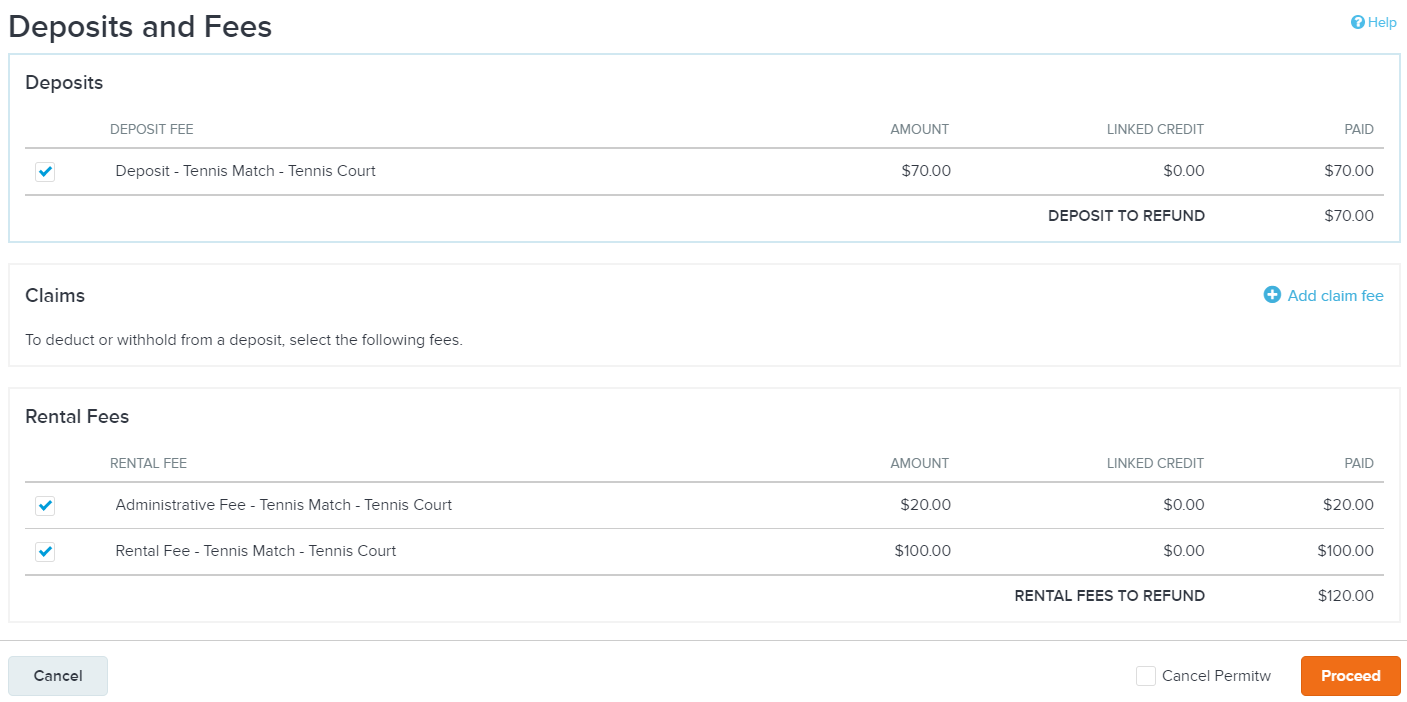
In the Notes section, enter staff notes and customer notes, if required.
On the bottom-right corner, select the Cancel Permit checkbox, if required.
Click Proceed. On the Refund page, select a customer account to receive the refund and then select the refund methods.