
ACTIVE Captivate is ACTIVE’s new solution for member-based organization to integrate their application systems with ACTIVE Captivate and provide a mobile app to their customers to improve customer engagement and customer retention rate.
ACTIVE Captivate consists of:
the ACTIVE Captivate staff site: for staff users to administer ACTIVE Captivate. For more information, refer to ACTIVE Captivate staff site.
the ACTIVE Captivate mobile application: for members to view and reserve activities, facilities and equipment. For more information, refer to ACTIVE Captivate mobile app.
To integrate with ACTIVE Captivate:
for organizations using ACTIVENet, refer to Integrating ACTIVENet with ACTIVE Captivate.
Once Integrating ACTIVENet with ACTIVE Captivate has been completed, to log into the ACTIVE Captivate staff site:
for US organizations, the URL is https://captivate.active.com/Login.
for Canadian organizations, the URL is https://captivateca.active.com/Login.
The ACTIVE Captivate staff site requires Single Sign On using ACTIVENet account login credentials. To grant access to the ACTIVE Captivate staff site to an ACTIVENet system user account, select the ACTIVENet AUI > Administration Home > System Settings > System Users > select the required system user > System Admin? check box.
After logging in, staff users can:
under the Front desk > Notifications tab:
Create a notification by clicking the Create a notification button. After entering the Subject and Message (format the message with different font sizes, bold or italic fonts, justification or hyperlinks as required), send the notification to a list of customers now, on a future date or when an activity, equipment or facility trigger occurs. Customers will then receive the notifications in their ACTIVE Captivate mobile app.
Under the Drafts tab, view, edit or delete draft notifications.
Under the Scheduled tab, view, edit or delete scheduled notifications.
Under the Sent tab, view a summary of app users' responses to a notification (SENT, OPENED and CLICKS counts) and open the Notification Report for a sent notification by clicking corresponding SUBJECT link. On the Notification report page, staff users can:
Preview how the notification appears to recipients by clicking the View notification button.
Download the Notification report as a CSV file by clicking the Download report button.
See what proportion of sent notifications triggered App launches, were Read or had links clicked (Total clicks).
View the Recipients list (including if a recipient launched the app, READ the notification or clicked links in the notification) and sort recipients by clicking the required column header.
On the Clicked links tab, view the total number of Clicks for each link (URL) in the notification.
view data synchronized from ACTIVENet:
under the Customer management > Customers tab, search for and view customers who have logged into the mobile app.
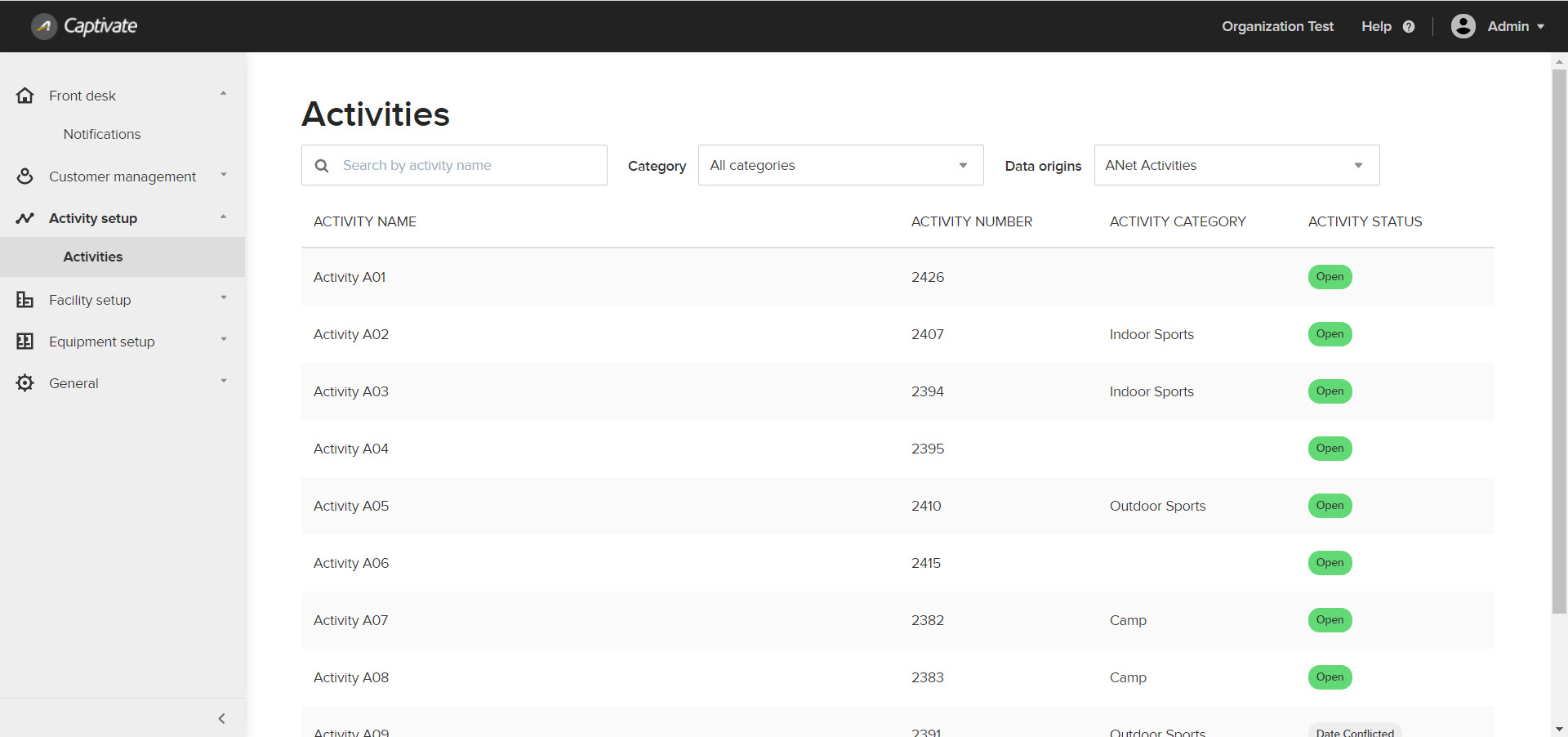
under the Activity setup > Activities tab (note that both activities and FlexReg programs from ACTIVENet are synchronized to display as activities in ACTIVE Captivate):
to view activities synchronized from the ACTIVENet Activity module, select Data origins dropdown > ANET Activities (selected by default).
to view FlexReg program data synchronized from the ACTIVENet FlexReg module, select Data origins dropdown > ANET FlexReg Flexreg programs.
under the Facility setup > Facilities tab, search for and view facilities.
under the Equipment setup > Equipment tab, search for and view equipment.
under the General > Centers tab, search for and view centers.
The ACTIVE Captivate mobile app enables organizations to connect with their members and improve customer engagement.
The ACTIVE Captivate mobile app is for use on:
iOS mobile devices and requires iOS 11 or higher (the latest version is recommended).
Android mobile devices and requires Android 8 or higher (the latest version is recommended).
To download the app, in the iOS App store or Google Play store, search for ‘ACTIVE Captivate’ and install the app. If the app name has been branded for an organization, then search for the branded name and then install the app.
Note that the Android version is currently under development and does not have all of the features available in the iOS version.
Customers can use their ACTIVENet accounts to sign into the app or use the app as a guest. A signed-in consumer can:
under the Home tab, open their membership barcode and view their activity/program registrations and equipment reservations
under the Register tab, view and register for activities and programs.
under the Facilities tab, view Facility and Equipment information, and reserve Equipment in a selected center.
under the Photos tab, view activity photos.
under the Notifications tab, view notifications sent by staff users.