
To determine how many new members have joined and how many existing members have terminated their memberships within a specific date range, run the Membership Summary Counts report.
Go to Reports > Membership Reports > Membership Summary Counts Report.
In the Filters section, specify the Packages, Package Categories, Date Period, and/or any other details that you want to use to filter the report, if necessary.
In the Options section:
To include a count of the number of customers who purchased a new membership and who did not hold any other valid memberships within the specified period, select Newly joined members.
To include a count of the number of customers who terminated a membership (e.g. canceled it or did not renew it within the specified period), select Terminated Members.
To consider an expired membership as valid for the purposes of this report's calculations until the end of its retention period, leave Ignore Retention Period? unchecked. To ignore the retention period and consider an expired membership as terminated on the membership's expiry date, select Ignore Retention Period?
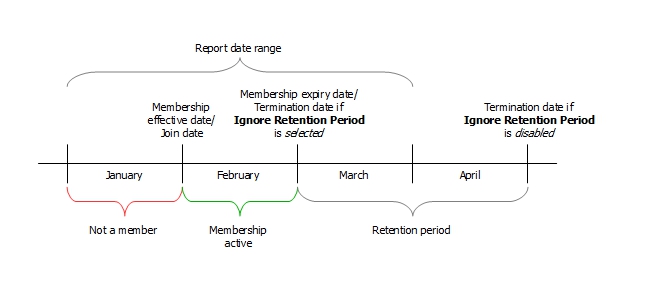
For example: Consider a situation where a customer has a membership that is effective on February 1 and expires at the end of February. If the retention period is two months long, then the retention period for this membership begins when the membership expires and lasts throughout March and April. Refer to the illustration below.
If you run the Membership Summary Counts report for January 1-April 1 without selecting Ignore Retention Period?, then the termination date of this membership is at the end of the retention period (end of April) and will not increase the count of terminated members in the report because it is outside the range of the report.
If you run the Membership Summary Counts report for January 1-April 1 and select Ignore Retention Period?, then the termination date of this membership is the same as the membership expiry date (end of February) and will increase the count of terminated members in the report because it is within the range of the report.
Select whether or not you want to include Retired customers in the report.
Select the Output Type for the report.
Click Run Report.
Configuring membership options
Adding or modifying a membership package category