
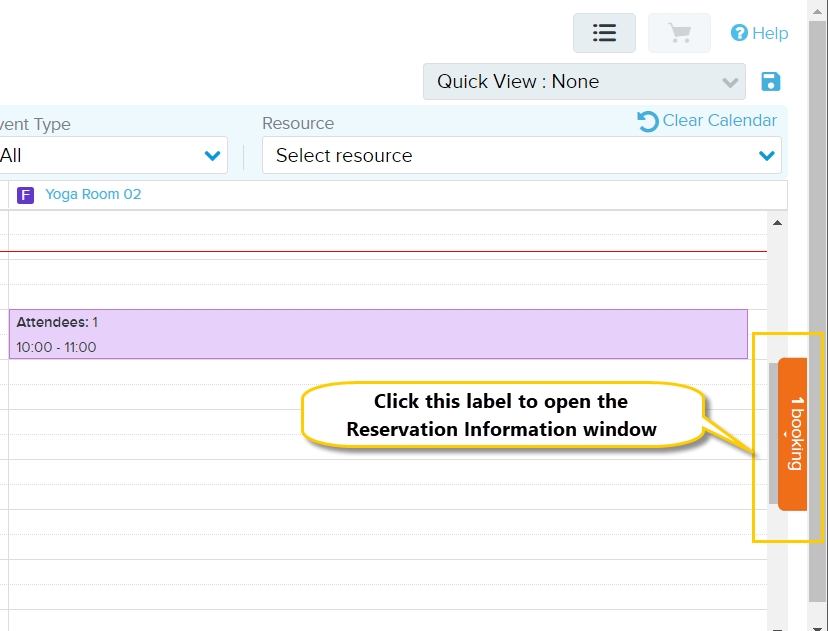
On the right of the calendar, the orange (Reservation Information) label displays the number of booking items that have been added.
To enter reservation information:
On the resource calendar, click the orange (Number of Bookings) label to open the Reservation Information window.
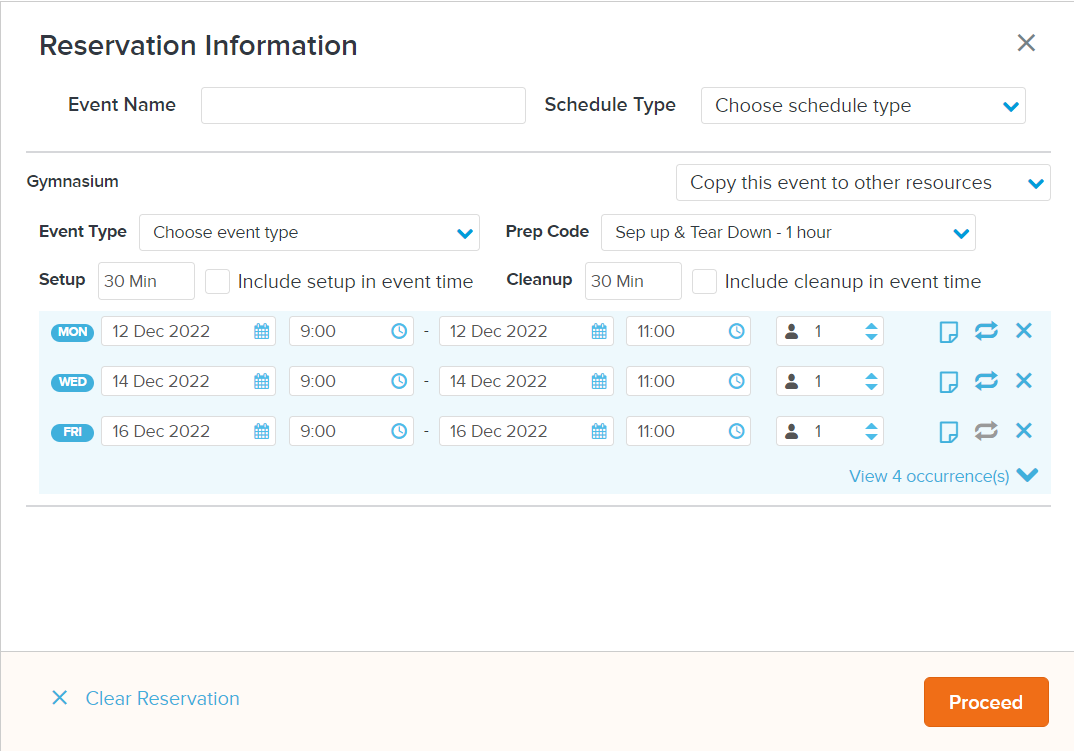
In the Reservation Information window, enter the Event Name and Schedule Type for the reservation.
For a single resource, in the Booking Items section, enter the event type, date, time, attendee and other required event information. Note that if you have selected multiple resources, then the information entered for the first resource is automatically applied to the other resources. You can then separately update the information for each resource, if necessary.
To enter
reservation information for a recurring booking, for the required
resource, click the  icon and on the
Recurring Booking window
enter the required recurrence pattern and end date.
icon and on the
Recurring Booking window
enter the required recurrence pattern and end date.
To override a rental block when creating a reservation, assign the Front Desk: Reserve - Override Rental Block permission to the required staff user profiles. Users with this permission can click the edit icon for a rental block and then edit the start and end times.
To override conflicts with the advanced reservation settings, assign the Front Desk: Reserve - Override Maximum Advanced Reservation Setting or Front Desk: Reserve - Override Minimum Advanced Reservation Setting permission to the required staff user profiles. Users with this permission can click the Override errors link or the double clocks icon to override advanced reservation errors.
To copy the current event schedule to other resources, click the Copy this event to other resources dropdown list, select the checkboxes next to the required resources and then click the Apply button.
To add another resource, go to the calendar and follow the steps in Searching for and reserving a resource.
To add
a note to a booking item, click the  icon.
icon.
To remove a booking item, click the X icon.
To remove all reservation information, click the Clear Reservations link.
Click the Proceed button to proceed to enter reservation details.