
The Resource Calendar displays resource availability for the selected resources in a single day or each day in a specified month. To reserve a resource, first select a required day or month, search for the required resources and then reserve the resources.
Go to the Front Desk > Facility Management – NEW > Resource Calendar page.
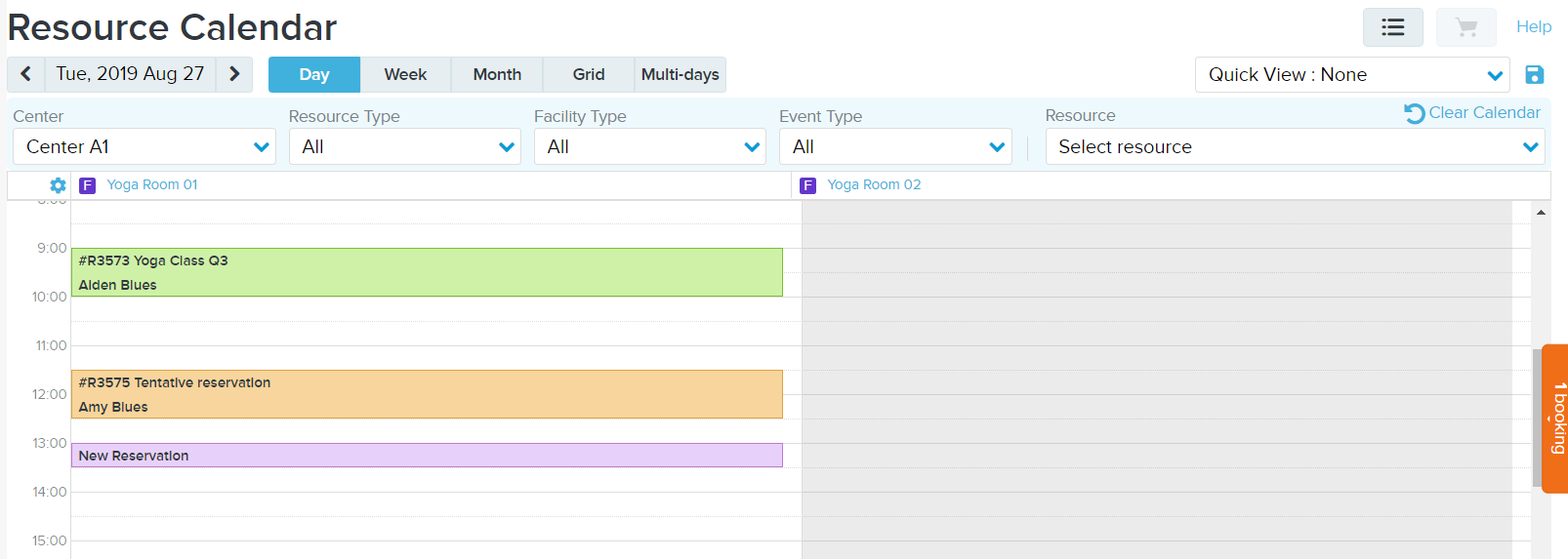
Select the Day view or Month view. In the date picker:
To select a required day:
Click < to move to the previous day.
Click > to move to the next day.
To change the default day, select the required day from the calendar.
To change the month, click the current month on the right-top corner to switch to the month view and select the required month.
To change the year, click the current year on the right-top corner to switch to the year view and select the required year.
Clicking Today returns to today in the calendar view.
To select a required month:
Click < to move to the previous month.
Click > to move to the next month.
To change the default month, select the required month from the calendar.
To change the year, click the current year on the top-right corner to switch to the year view and select the required year.
Clicking Current Month returns to the current month in the calendar view.
In the Menu bar > Filter section , enter search criteria to narrow down the list of resources, and select the required resources in the Resource dropdown.
In the Day view, to create a new reservation:
To reserve a single resource, drag the mouse to select a blank timeslot. The blue area is your selection, and the light blue area is the corresponding reservation time range. In the screenshot below, for Yoga Room 01, 9:00 to 11:00 is selected.
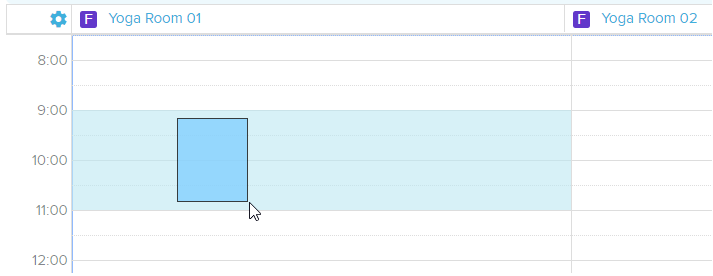
To edit the selected block:
To change to another timeslot, drag-and-drop the block into the required timeslot.
To change the duration, resize the block.
To remove the block, click the Delete button on your keyboard.
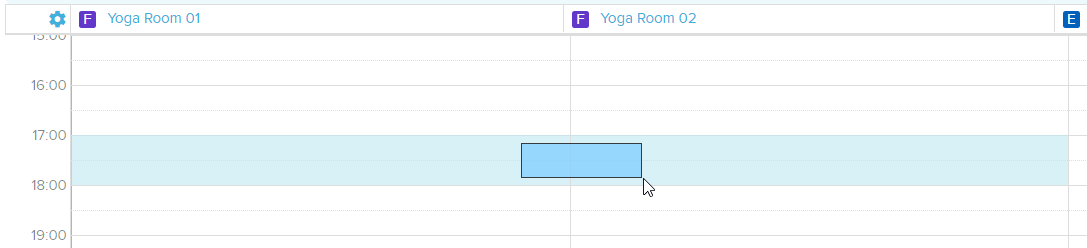
To reserve multiple resources in one timeslot, make sure the resources are next to each other in the calendar. Drag the mouse to select a blank timeslot for the resources. The blue area is your selection, and the light blue area is the corresponding reservation time range. In the screenshot below, for Yoga Room 01 and Yoga Room 02, 17:00 to 18:00 is selected.
To make a reservation on multiple days, select any time range in the calendar, and edit the time range accordingly in the Reservation Information window.
The minimal selectable time increment is a quarter of a row (15 minutes). To make a reservation in an irregular timeslot (for example 9:05 to 9:30), select a time range close to the required time range (for example 9:00 to 9:30) and then edit the start or end time in the Reservation Information window.
To add another booking, repeat the above steps. To remove an incomplete reservation, in the calendar, click the reservation block and press the Delete key on the keyboard.
In the Week or Grid view, to create a new reservation, refer to the Day view. Note that in the Week, you cannot select a timeslot for multiple resources.
In the Month view, to create a new reservation:
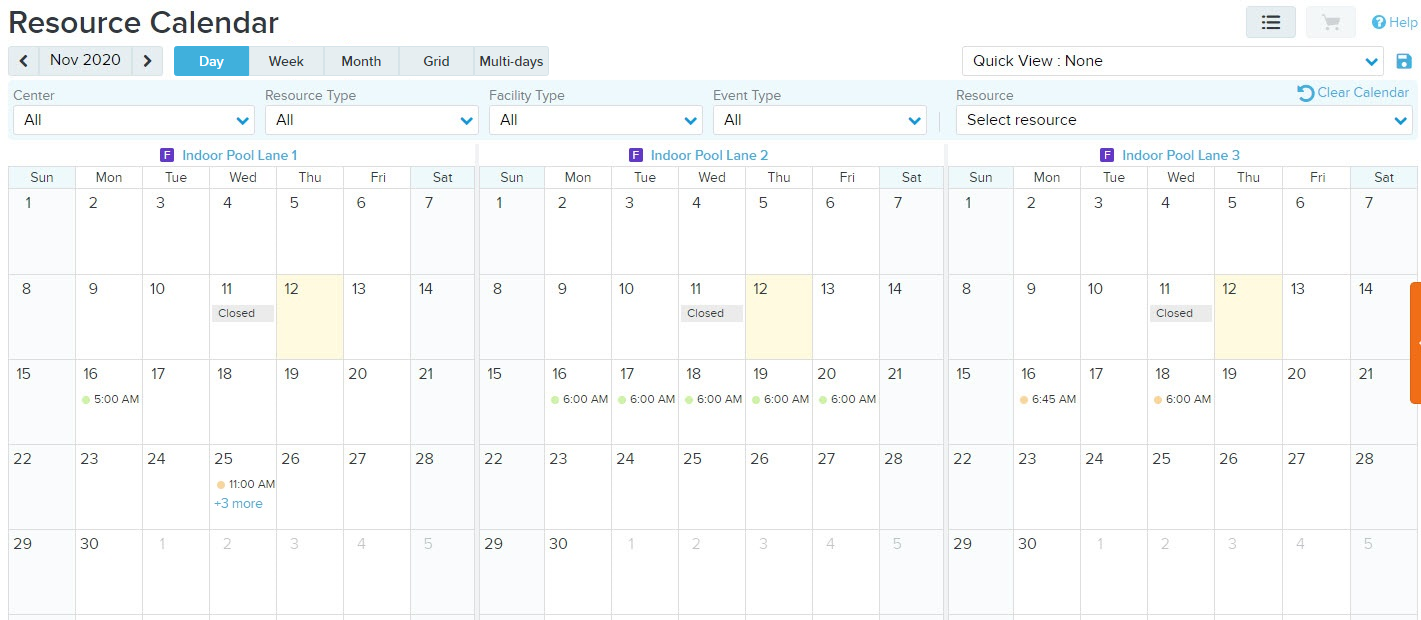
To reserve a single resource, drag the mouse to select a blank timeslot. selecting a time block creates a whole day reservation. Staff users can then adjust the time duration in the Reservation Information window.
To make a reservation on multiple days, multi-select the required days for the resource.
To add another booking, repeat the above steps.
In the Multi-days view, to create a new reservation, refer to the Month view. Note that in the Multi-days views, to reserve multiple resources in one timeslot, make sure the resources are next to each other in the calendar. Drag the mouse to select a blank timeslot for the resources.
To create a reservation on multiple days, refer to above sections and select the required times on each day. To create recurring bookings, refer to enter reservation information.
On the right of the calendar, the orange (X bookings) label displays the number of booking items that have been added. To complete the reservation, open the orange (X bookings) label to enter reservation information.